Quick Start
Get up and running with Sci-pilot in under 2 minutes.
Install Sci-pilot
Download the installer from the waitlist confirmation email and run it.
Add an API Key
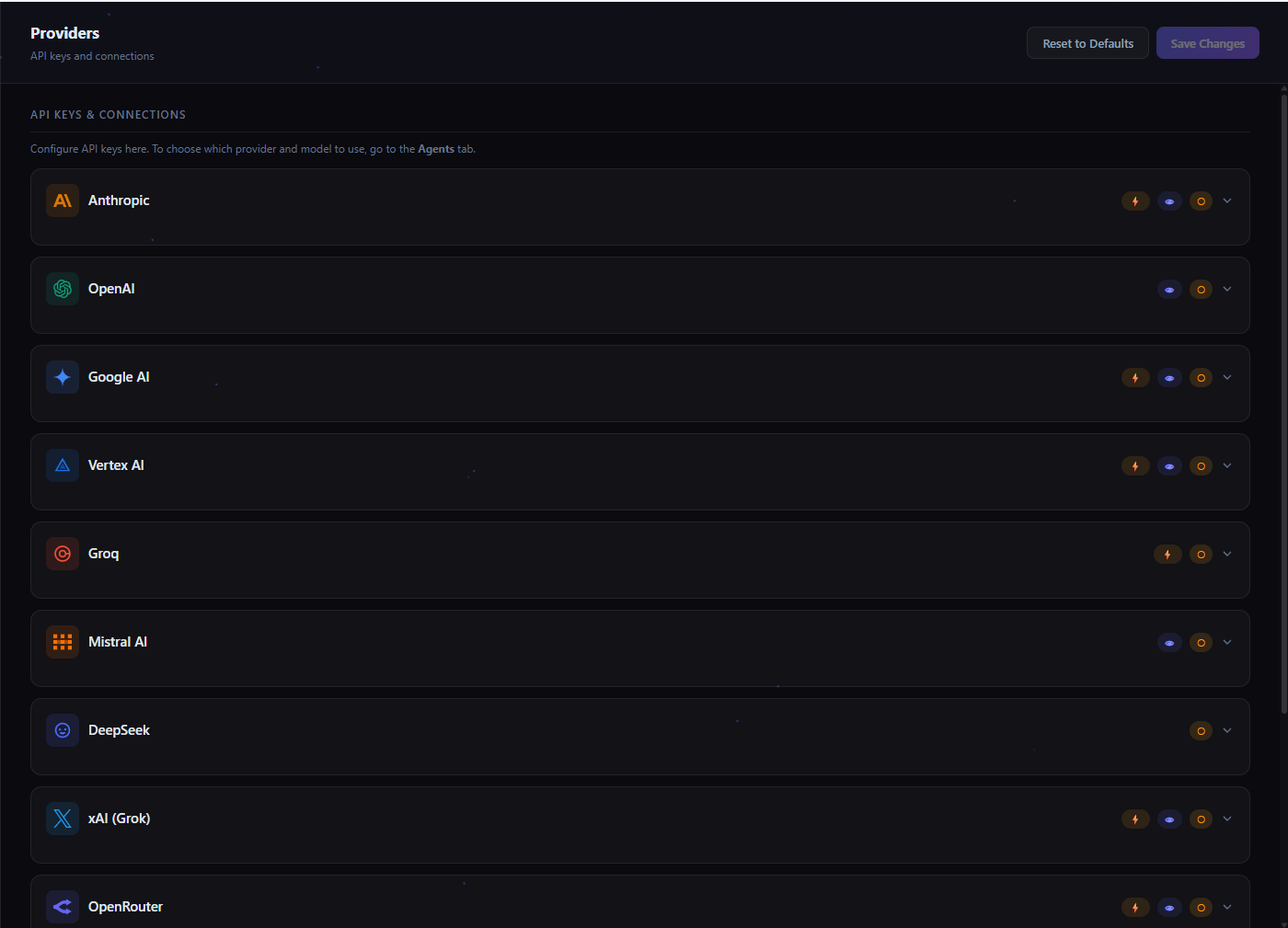
Go to Settings > Providers and enter your Anthropic or OpenAI API key.
Choose Your Model
Go to Settings > Agents and select your preferred provider and model.
Start Chatting
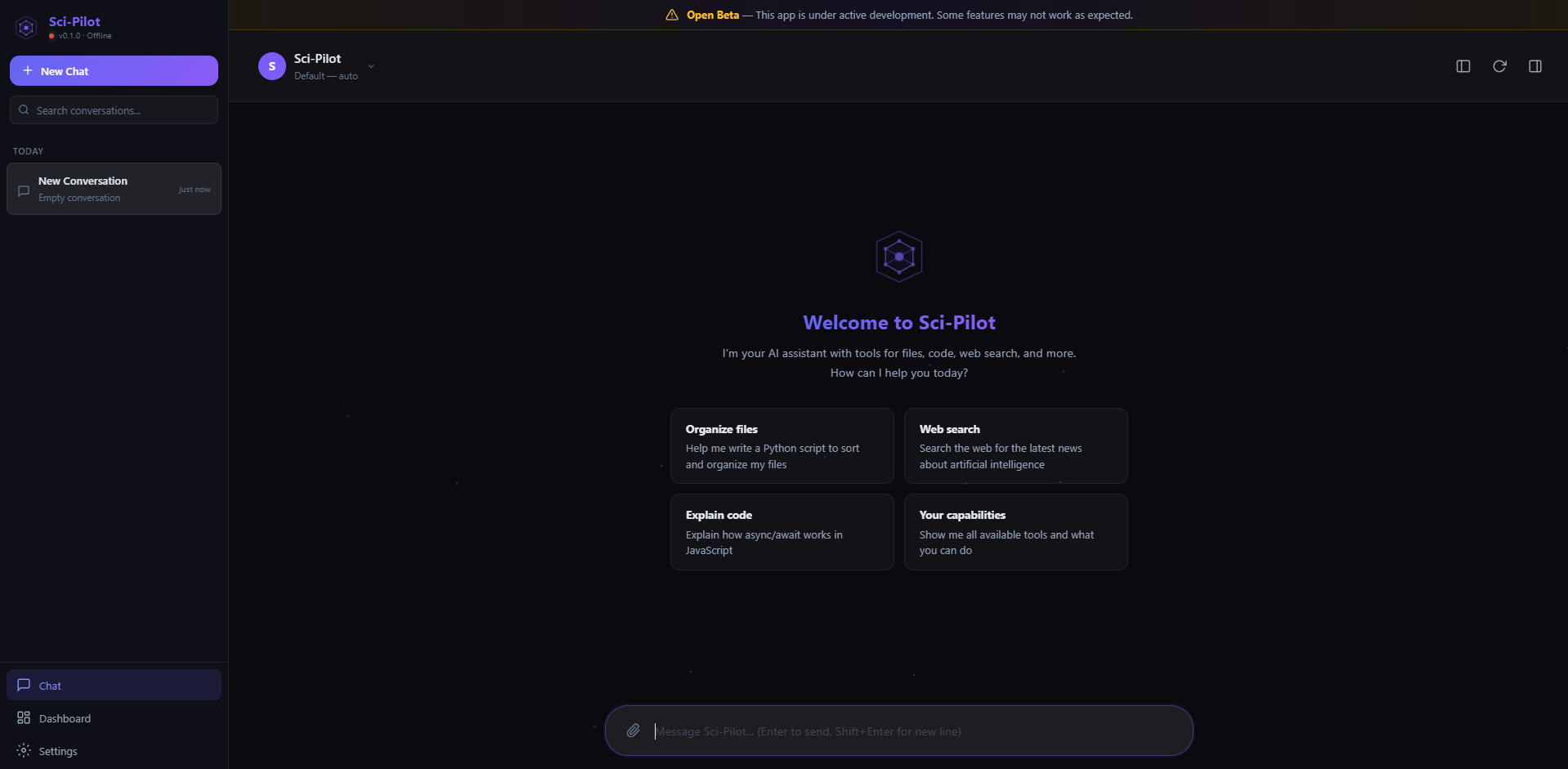
Click + New Chat and send your first message. The agent can use tools, search the web, execute code, and more.
The Agent Can Configure Itself
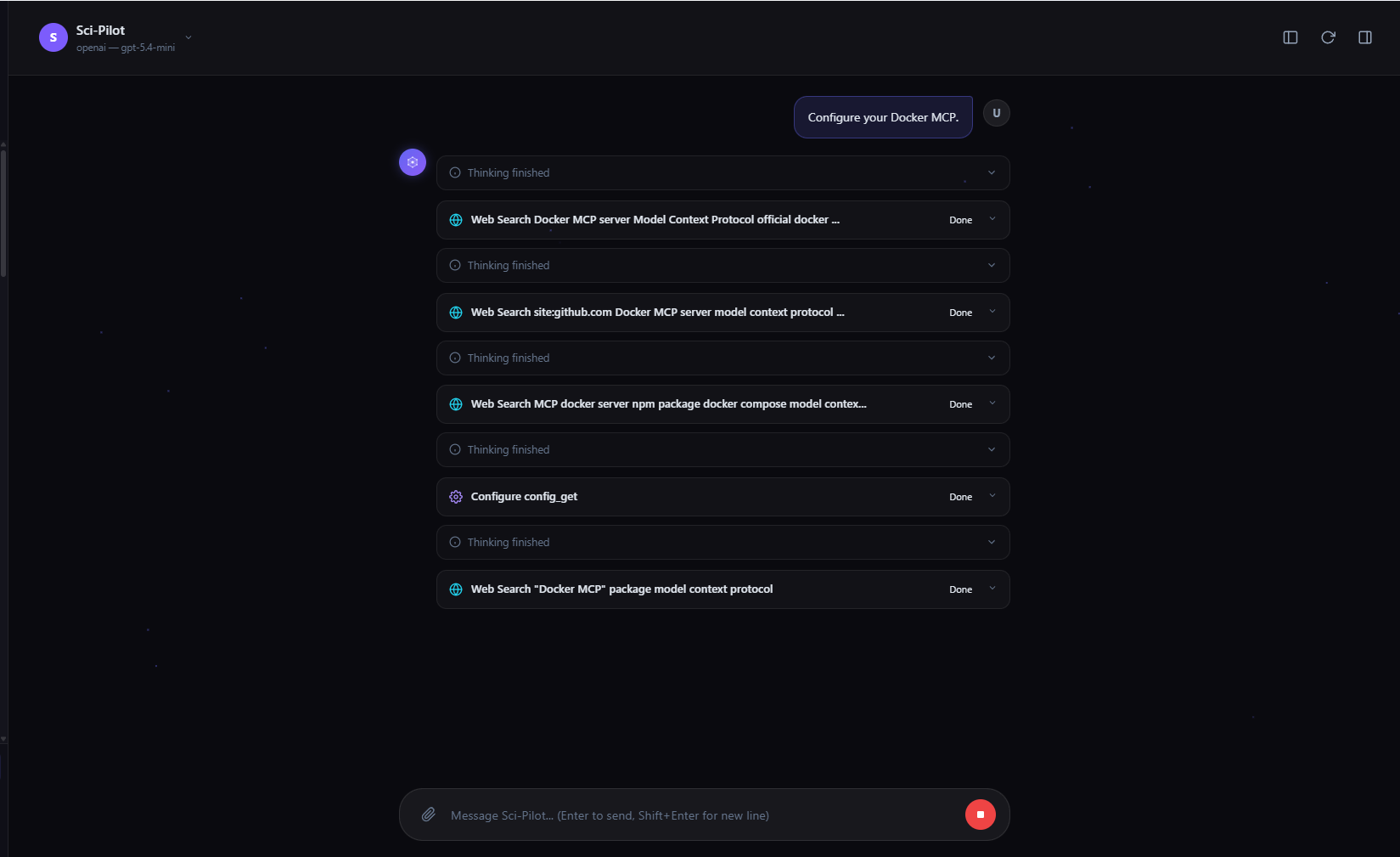
You don't have to set up everything manually. Sci-pilot's agent can configure itself — just ask it in natural language. Need a new MCP server? Say "Configure Docker as an MCP server". Want to change your model? Just ask. Need a skill installed? Say "Install the web-search skill". The agent searches, installs, and configures everything automatically — settings, tools, providers, and more.
Teams
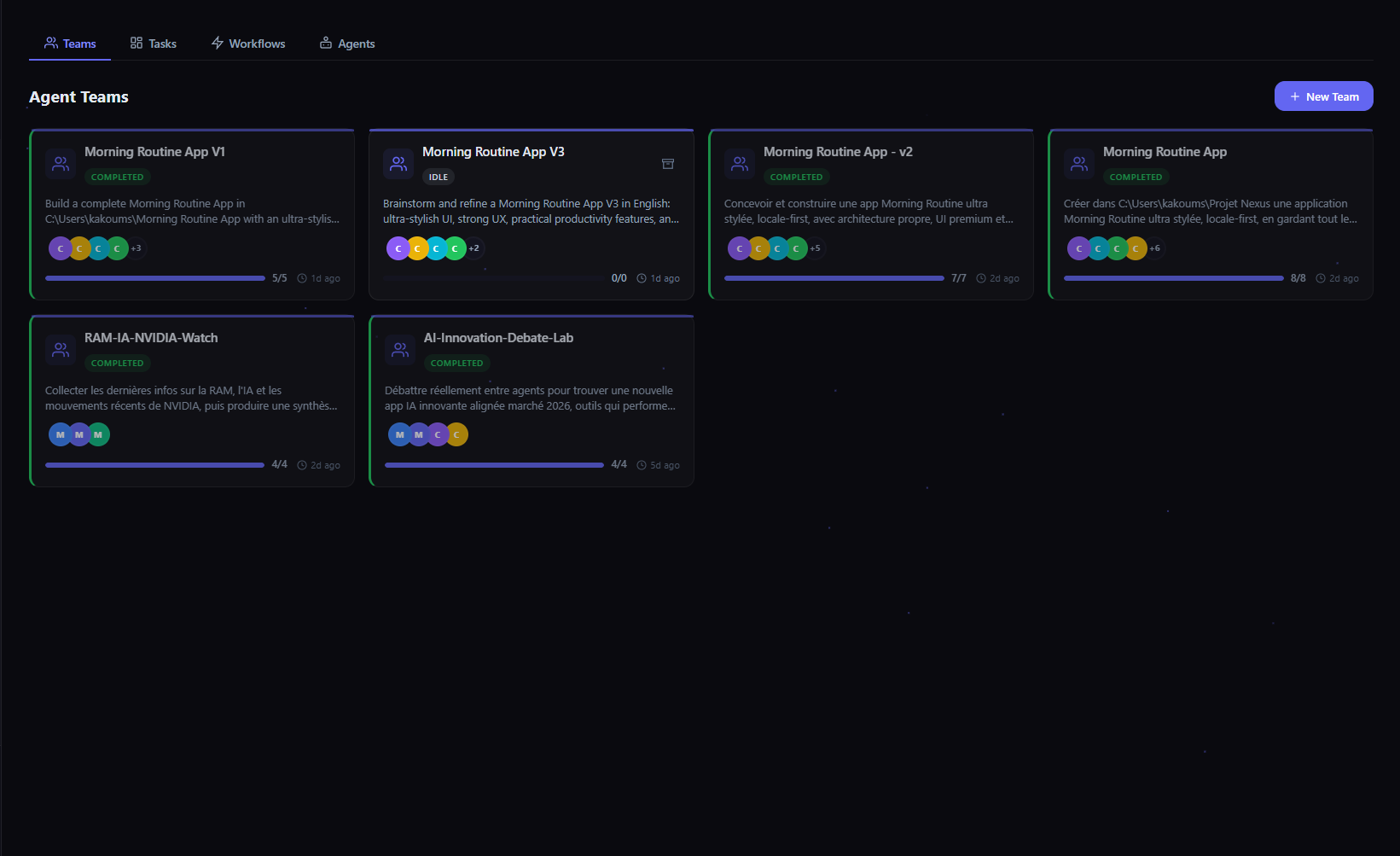
Coordinate multiple AI agents working together on complex projects. Teams share a task board and communicate through a mailbox system.
Tab Navigation
Switch between Teams, Tasks, and Agents views.
Create a Team
Click + New Team to create a team. Assign agents, define goals, and let them collaborate autonomously.
Shared Task Board
Each team has a kanban-style task board. Agents claim, update, and complete tasks independently.
Team Mailbox
Agents communicate through messages. View the full conversation history between team members.
Create a Team
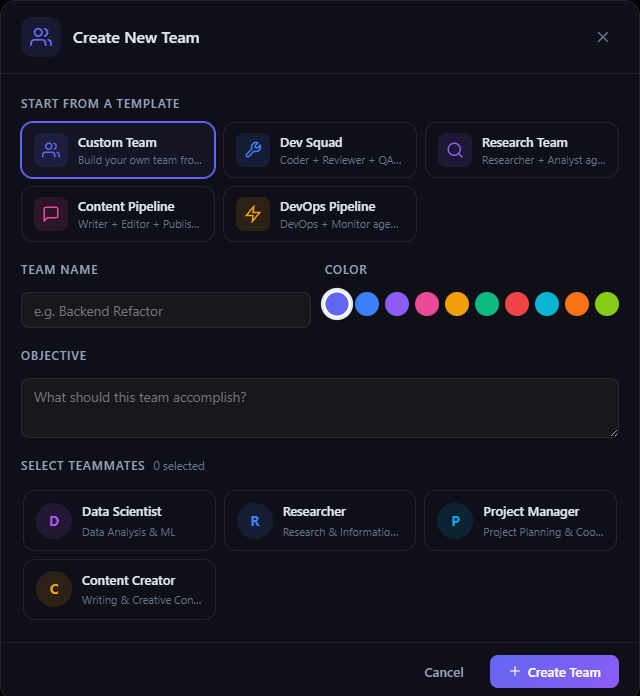
Choose from pre-built templates (Dev Squad, Research Team, Content Pipeline, DevOps Pipeline) or create a custom team. Assign a name, color, objective, and select teammates from your configured sub-agents.
Team Detail View
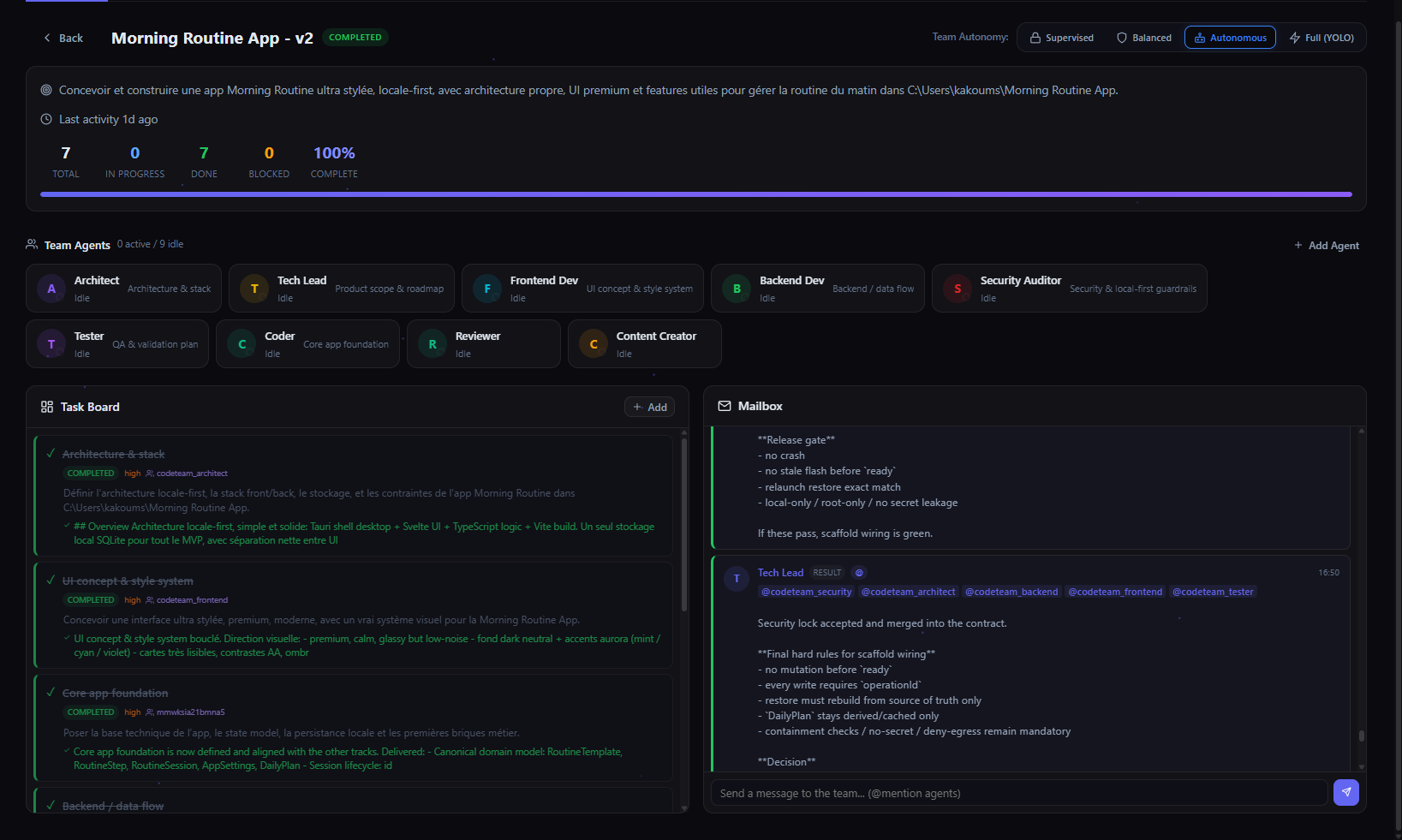
The team detail view shows all assigned agents with their roles, a Task Board with task cards (status, priority, assigned agent), and the Mailbox with inter-agent messages. Monitor progress and agent coordination in real-time.
Tasks
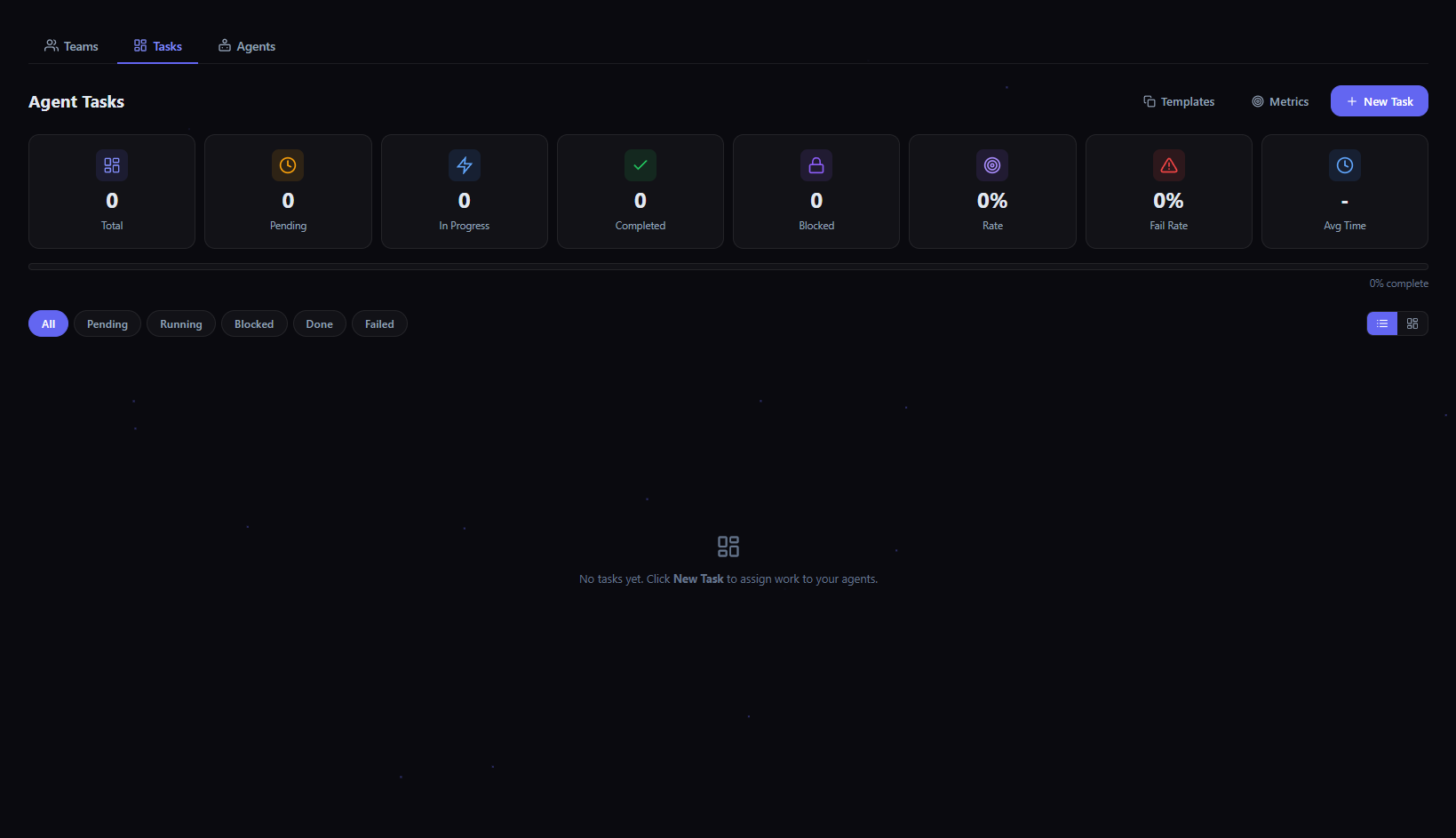
Create, assign, and track tasks for your AI agents. Monitor progress with real-time statistics and status filters.
Statistics Cards
Real-time overview: Total, Pending, In Progress, Completed, Blocked tasks — plus completion Rate, Fail Rate, and Average Time.
Status Filters
Filter tasks by status: All, Pending, Running, Blocked, Done, or Failed.
Templates & Metrics
Save task templates for recurring work. View detailed metrics and performance analytics.
Task Dependencies
Tasks can depend on other tasks. Blocked tasks automatically unblock when dependencies complete.
Agents Monitor
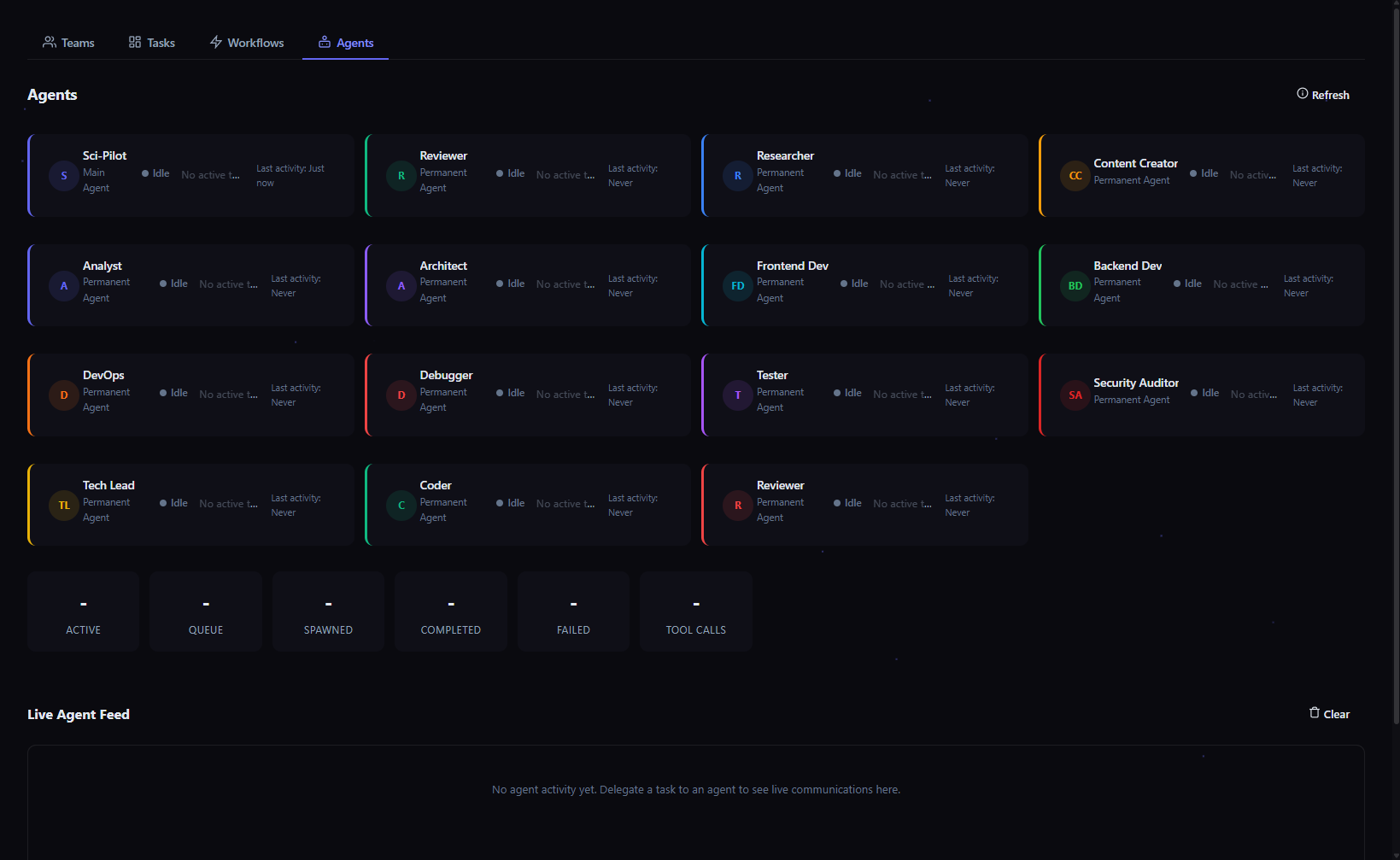
Monitor all your AI agents in real-time. See which agents are active, their status, and live communications.
Agent Status
See each agent's current state: Idle, Working, or Error. Shows last activity timestamp.
Performance Metrics
Track Active, Queue, Spawned, Completed, Failed counts, and total Tool Calls across all agents.
Live Agent Feed
Real-time stream of agent communications. See what your agents are doing as they work on delegated tasks.
Multi-Agent System
The main agent can spawn sub-agents to handle specific tasks in parallel, each with their own personality and tools.
Providers
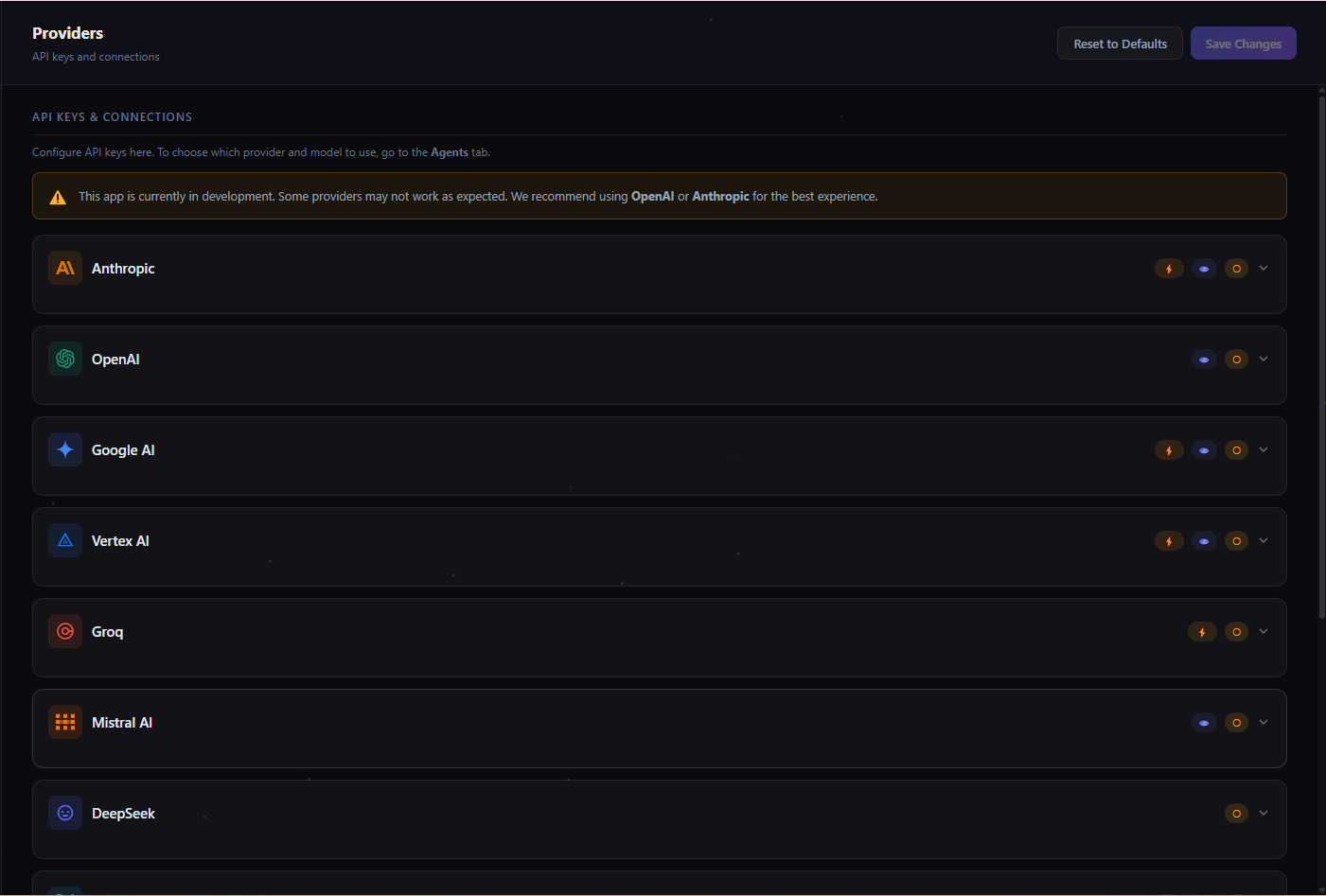
Configure your AI provider API keys. Sci-pilot supports 10+ providers — use any model from any provider.
Supported Providers
Anthropic, OpenAI, Google AI, Vertex AI, Groq, Mistral, DeepSeek, xAI, OpenRouter, Together, and Ollama (local).
API Key Management
Enter your API key for each provider. Keys are stored locally on your machine — never sent to our servers.
Connection Status
Each provider shows its connection status. Click the info icon for setup instructions and pricing links.
Local Models
Run models locally with Ollama. No API key needed — just install Ollama and pull your preferred model.
config/settings.json. They never leave your machine.MCP Servers
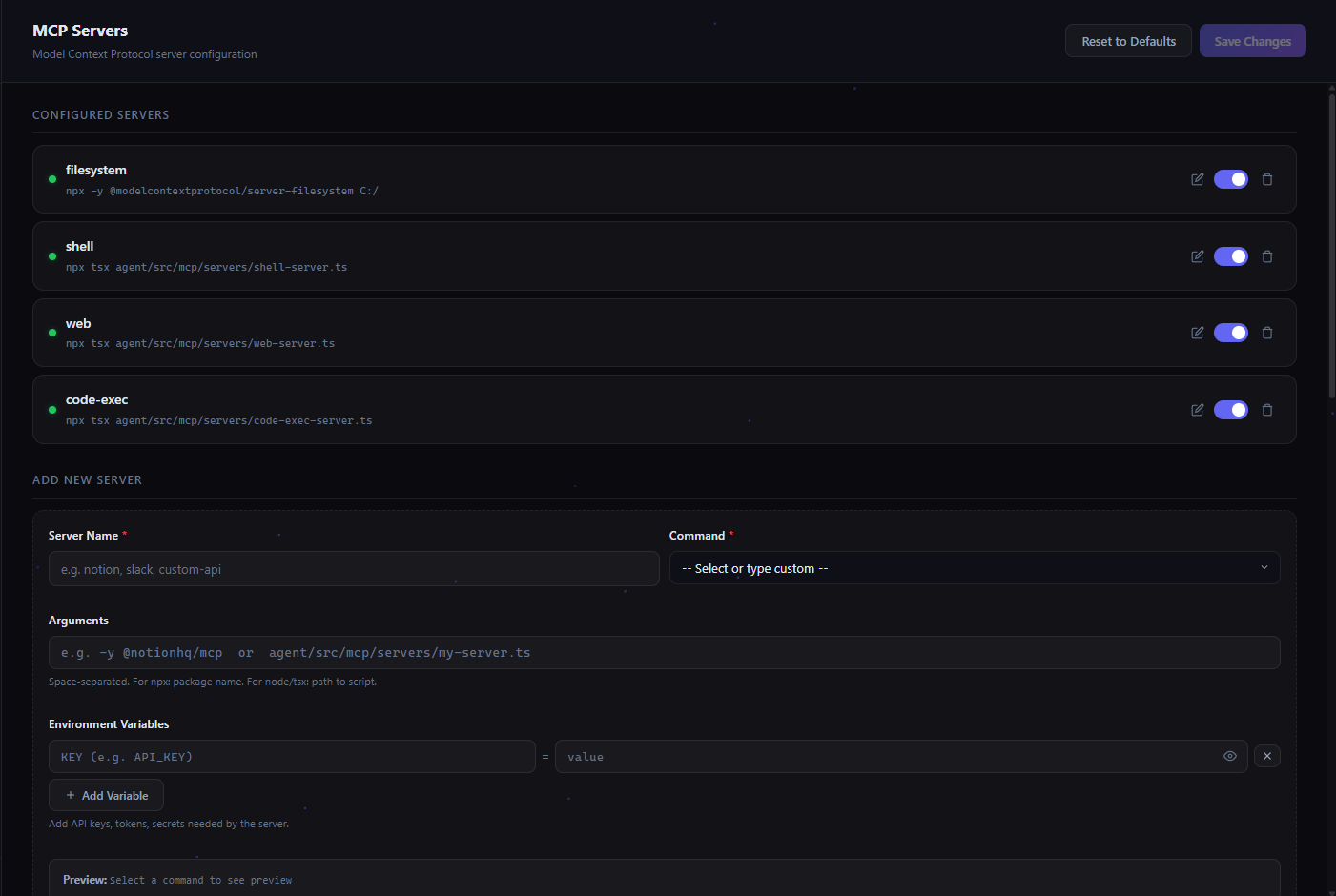
Extend your agent's capabilities with MCP (Model Context Protocol) servers. Each server provides specialized tools the agent can use.
Built-in Servers
Shell (execute commands), Web (search & fetch), Code Exec (run Python/JS/Bash). Toggle each on/off.
Add Custom Servers
Add any MCP-compatible server. Specify the command, arguments, and environment variables.
Hot-Reload
Changes take effect immediately — no need to restart. Servers are started and stopped on demand.
Community Servers
Browse and install 100+ community MCP servers from the Sci-pilot Hub — one click to add.
Agents Configuration
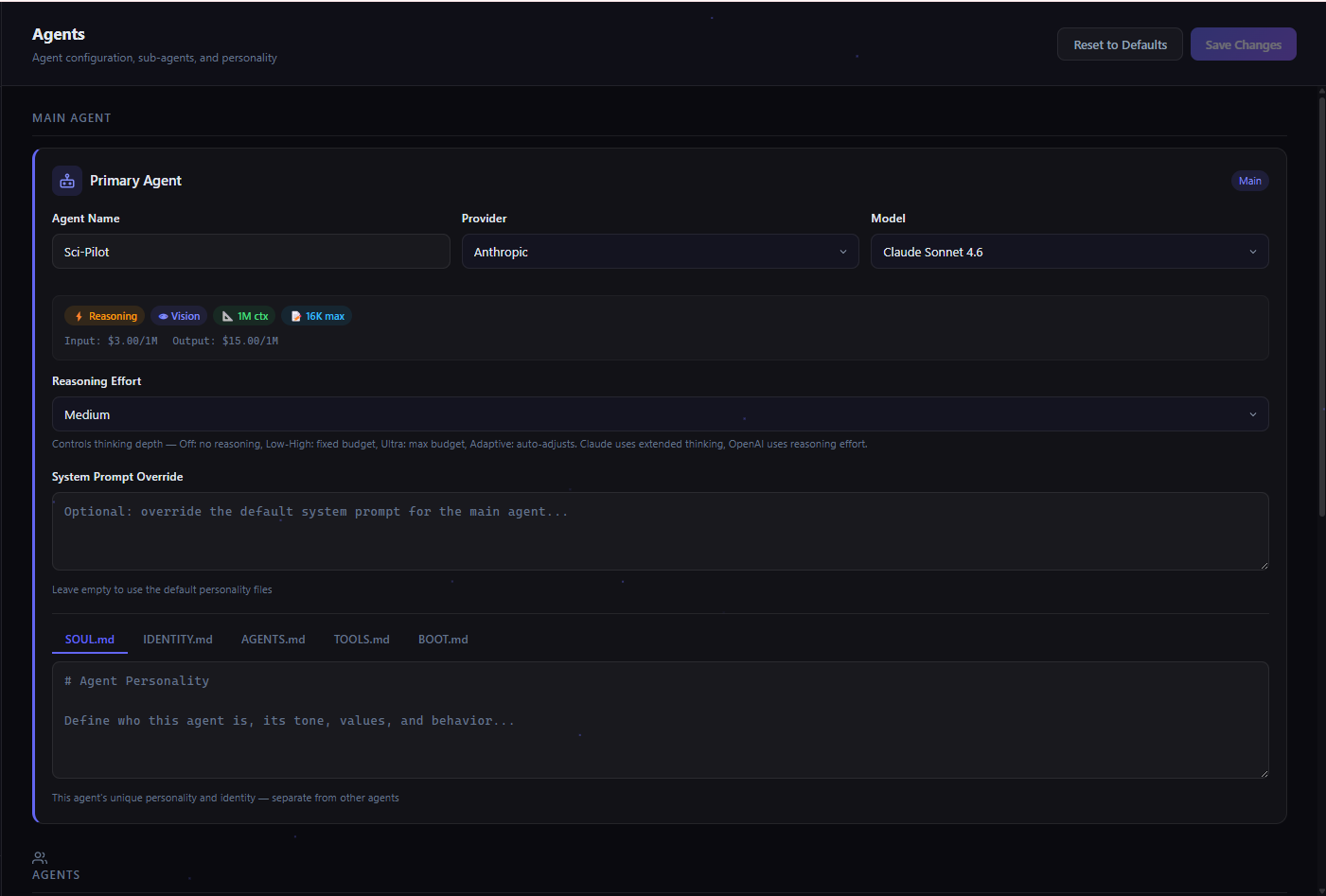
Configure your primary agent and create specialized sub-agents. Each agent has its own personality, model, and tool permissions.
Primary Agent
Provider & Model
Choose which AI provider and model the agent uses. Switch anytime without losing conversation history.
System Prompt Override
Customize the default system prompt. Define how the agent behaves, its tone, and what it should focus on.
Personality Files
Define the agent's personality via SOUL.md (core identity), IDENTITY.md (behavior), and USER.md (user preferences).
Generation Parameters
Fine-tune temperature, max tokens, and other generation settings for precise control over outputs.
Sub-Agents
Specialized Agents
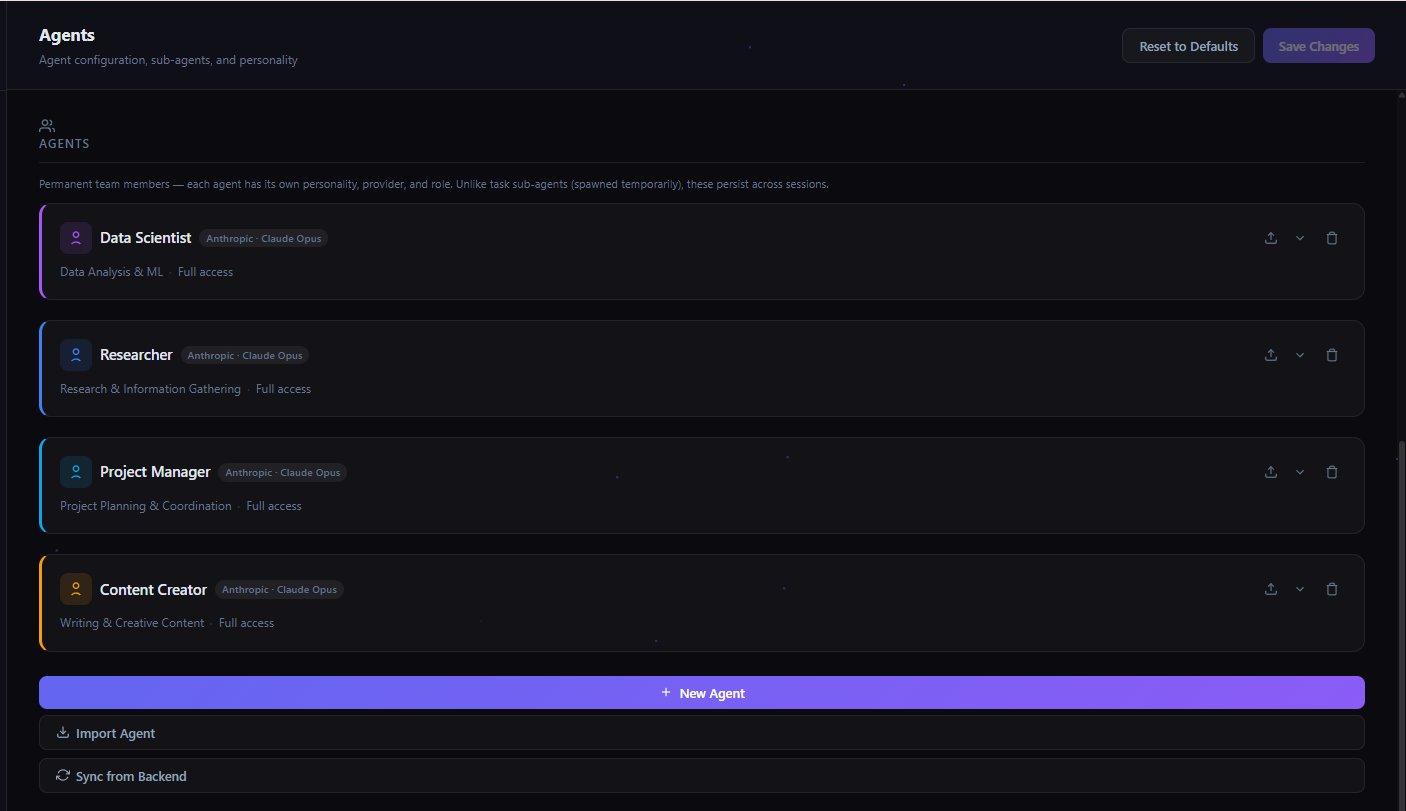
Pre-configured agents: Data Scientist, Researcher, Project Manager, Content Creator. Each optimized for their role.
Create Custom Agents
Click + New Agent to create agents tailored to your workflow. Define their personality, tools, and model.
Security
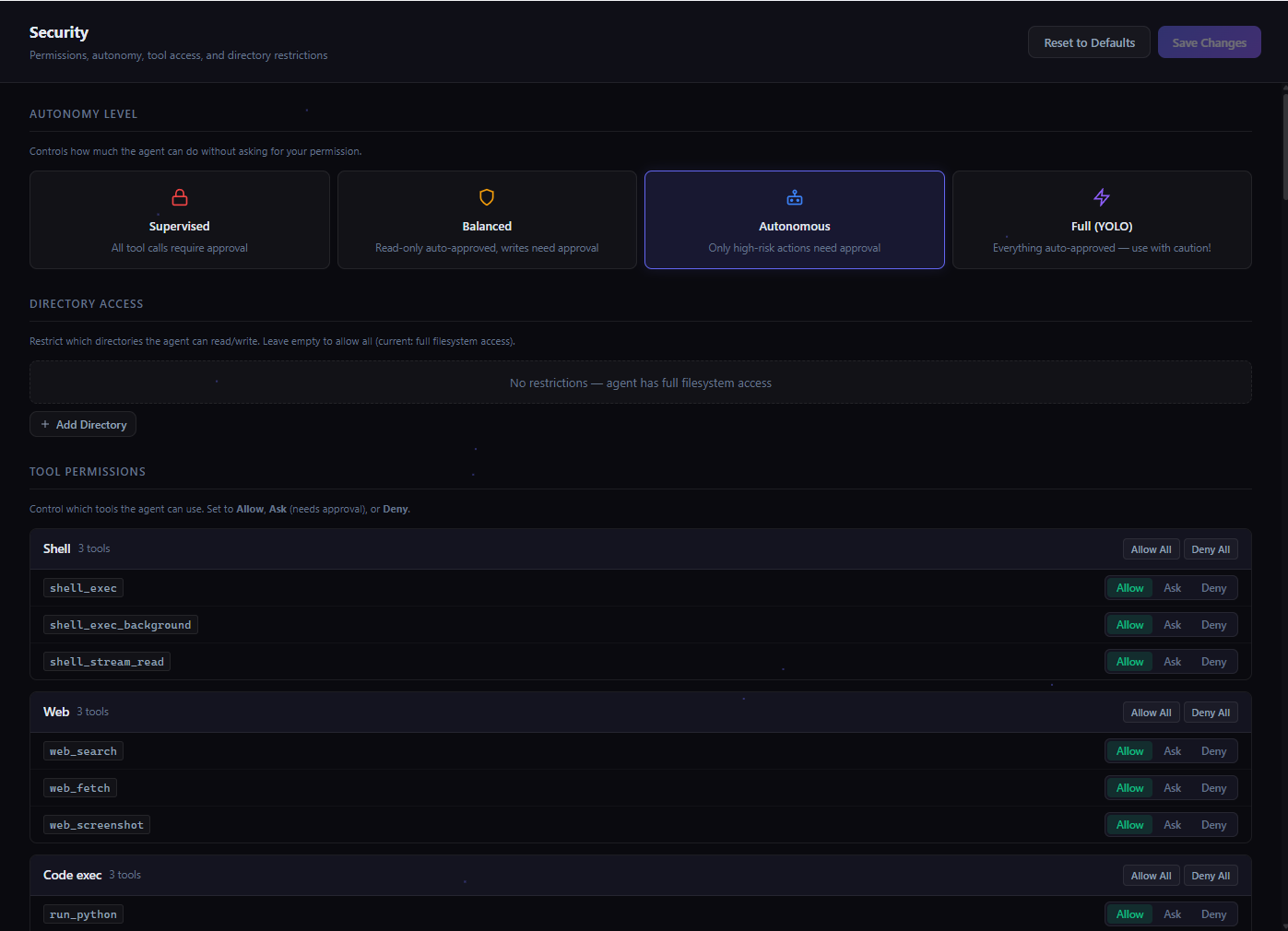
Control what your agents can do. Set autonomy levels, restrict directory access, and manage tool permissions.
Autonomy Levels
Choose how much freedom agents have: Supervised (approve everything), Balanced (approve risky only), Autonomous (approve destructive only), or Full / YOLO (no approvals).
Directory Access
Restrict which directories the agent can read from and write to. Protect sensitive folders.
MCP Server Access
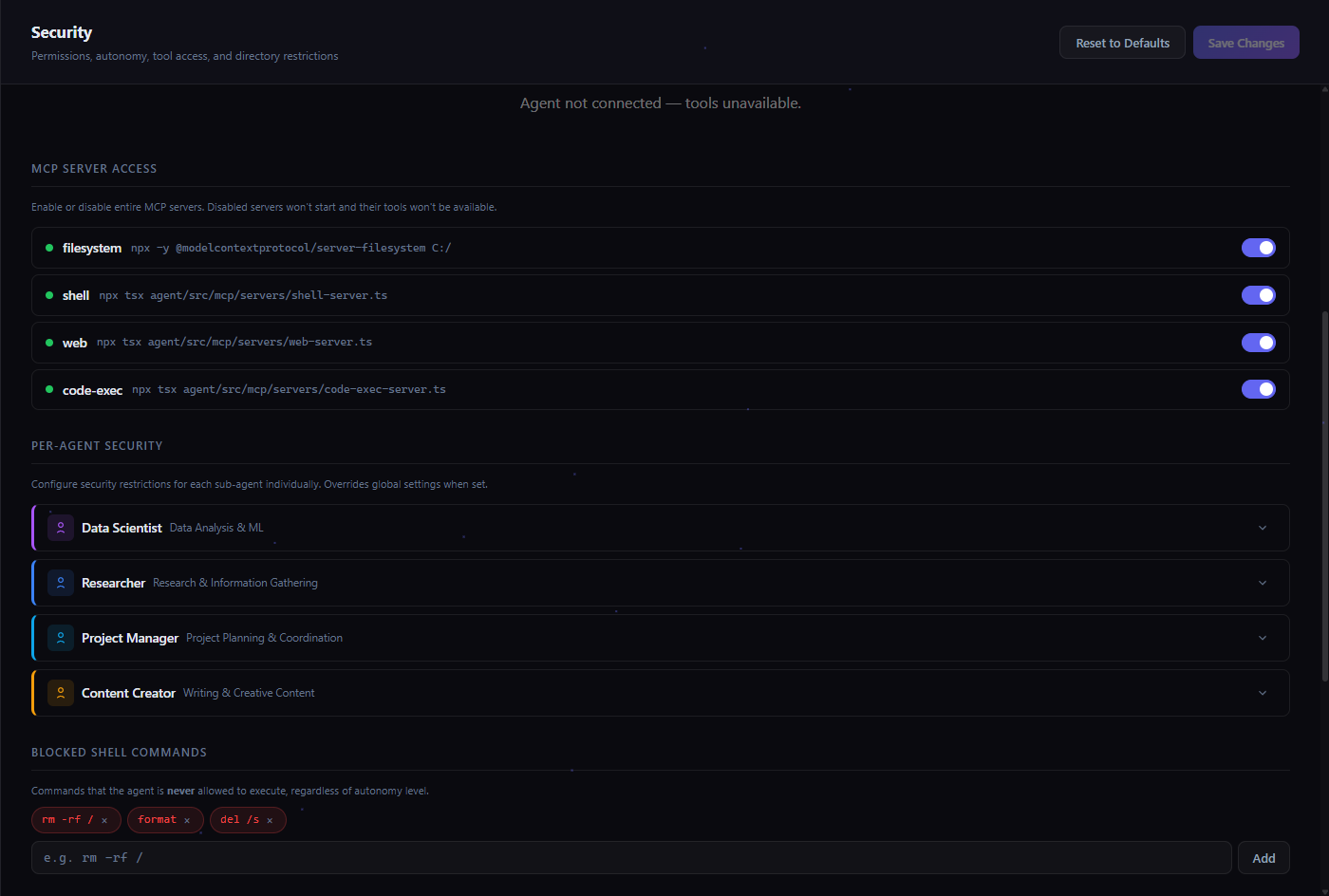
Enable or disable specific MCP servers. Control which tools are available to the agent.
Per-Agent Security
Set different security profiles for each sub-agent. A researcher might have web access but no shell access.
Blocked Commands
Define specific commands or patterns that should never be executed, regardless of autonomy level.
Interface
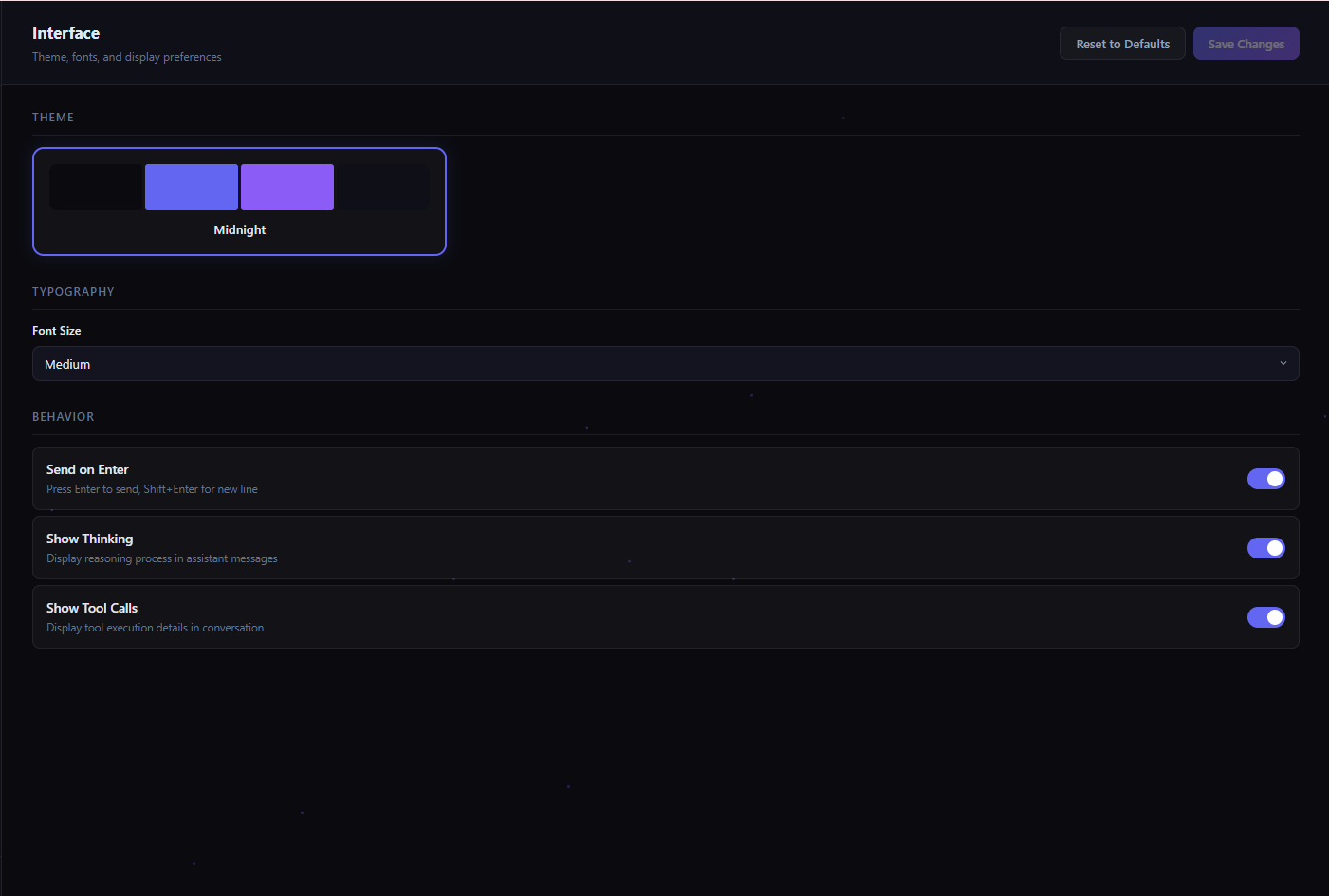
Adjust font size and chat behavior preferences.
Typography
Adjust the font size: Small, Medium (default), or Large.
Send on Enter
Toggle whether Enter sends messages or creates a new line. Use Shift+Enter for the alternative.
Show Thinking & Tool Calls
Toggle visibility of the agent's reasoning process and tool execution details in the chat.
Skills
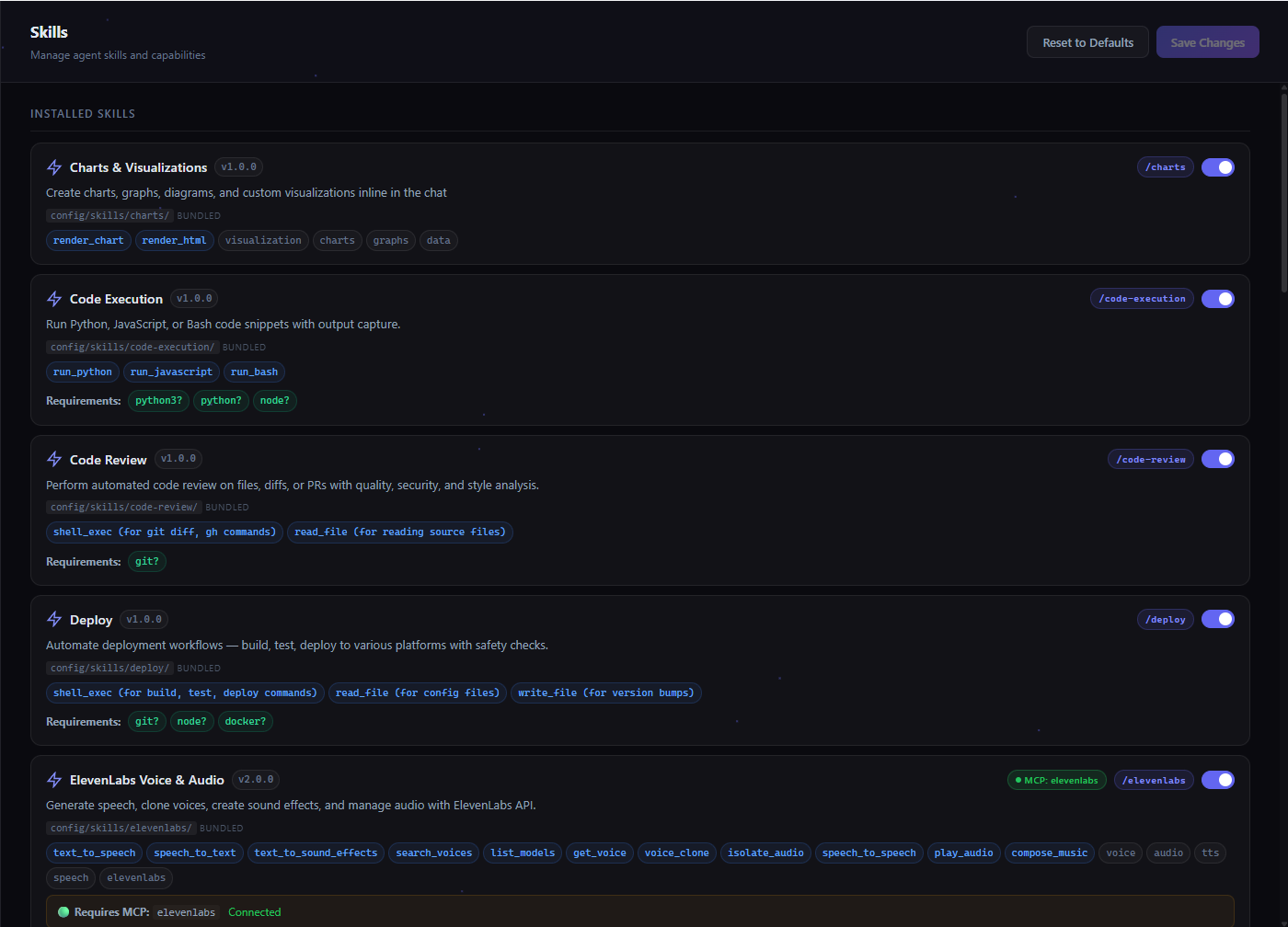
Extend your agent with specialized skills. Skills are instruction sets that teach the agent new capabilities.
/charts to generate visualizations, /code-review for automated PR reviews, /deploy for one-command deployments, or /elevenlabs for AI voice generation. Skills define triggers (when to activate), required tools, dependency checks (env vars, binaries, OS), and can even bundle their own MCP server. Load skills from 5 sources: workspace, project, user, community hub, or bundled. The agent uses metadata-only prompt injection — skills are indexed compactly and full instructions load on-demand, saving thousands of tokens per API call.
Installed Skills
View and manage all loaded skills. Enable or disable each skill individually.
Create Custom Skills
Create a SKILL.md file with YAML frontmatter. Define triggers, instructions, required tools, and environment dependencies.
Slash Commands
Skills can be invoked as slash commands: type /skill-name in chat to trigger them directly.
Automatic Triggers
Skills can trigger automatically when the agent detects a matching request. No manual invocation needed.
Plugins
Extend Sci-pilot with plugins. Plugins can add new tools, modify behavior, and integrate with external services.
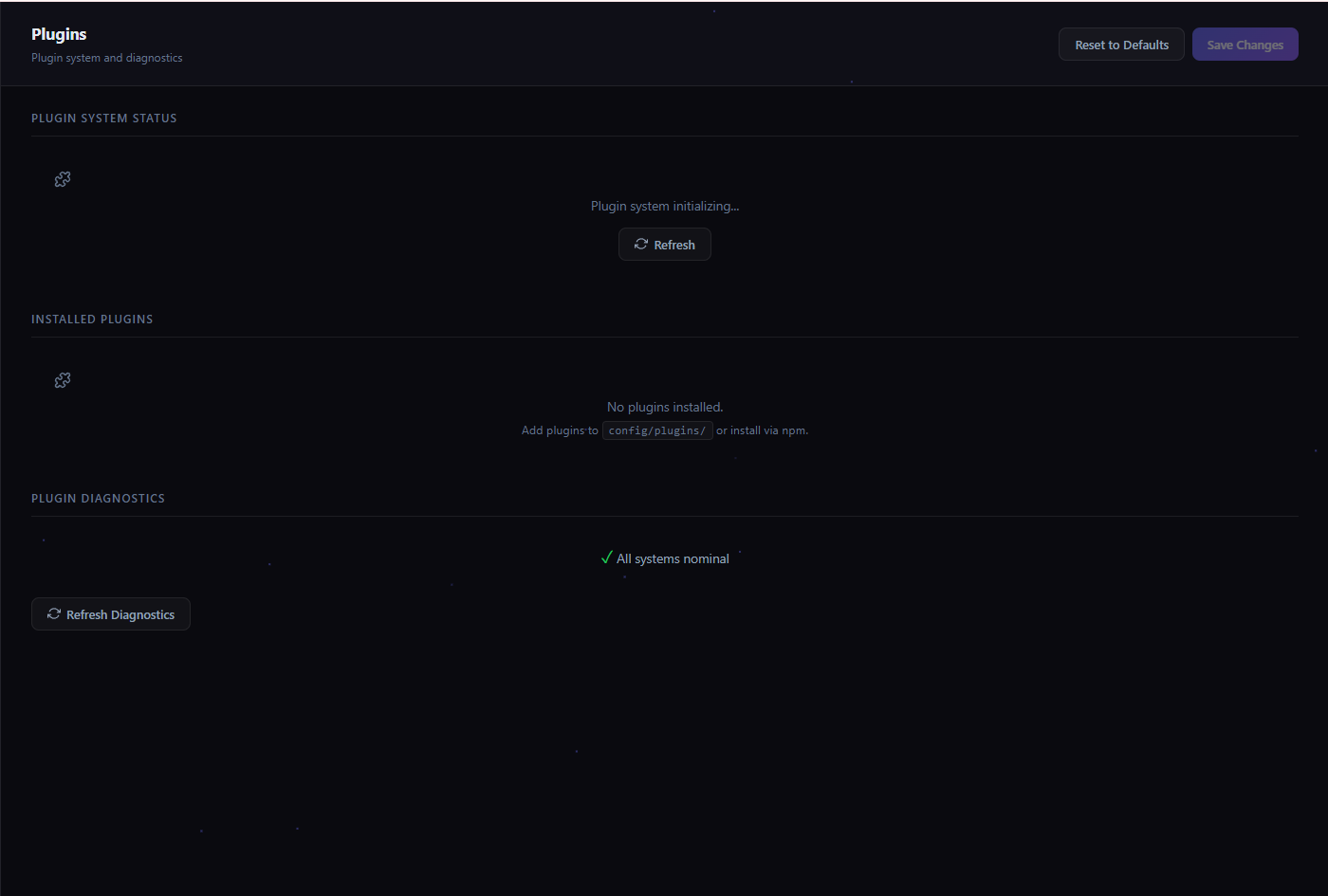
Plugin System Status
Shows whether the plugin runtime is initialized and ready.
Installed Plugins
Add plugins to config/plugins/ or install via npm. Each plugin runs in a sandboxed environment.
Diagnostics
Run diagnostics to check plugin health and identify issues. Shows "All systems nominal" when everything is working.
Memory
Persistent memory system that grows over time. Your agent remembers past conversations, learns from experience, and builds a knowledge base.
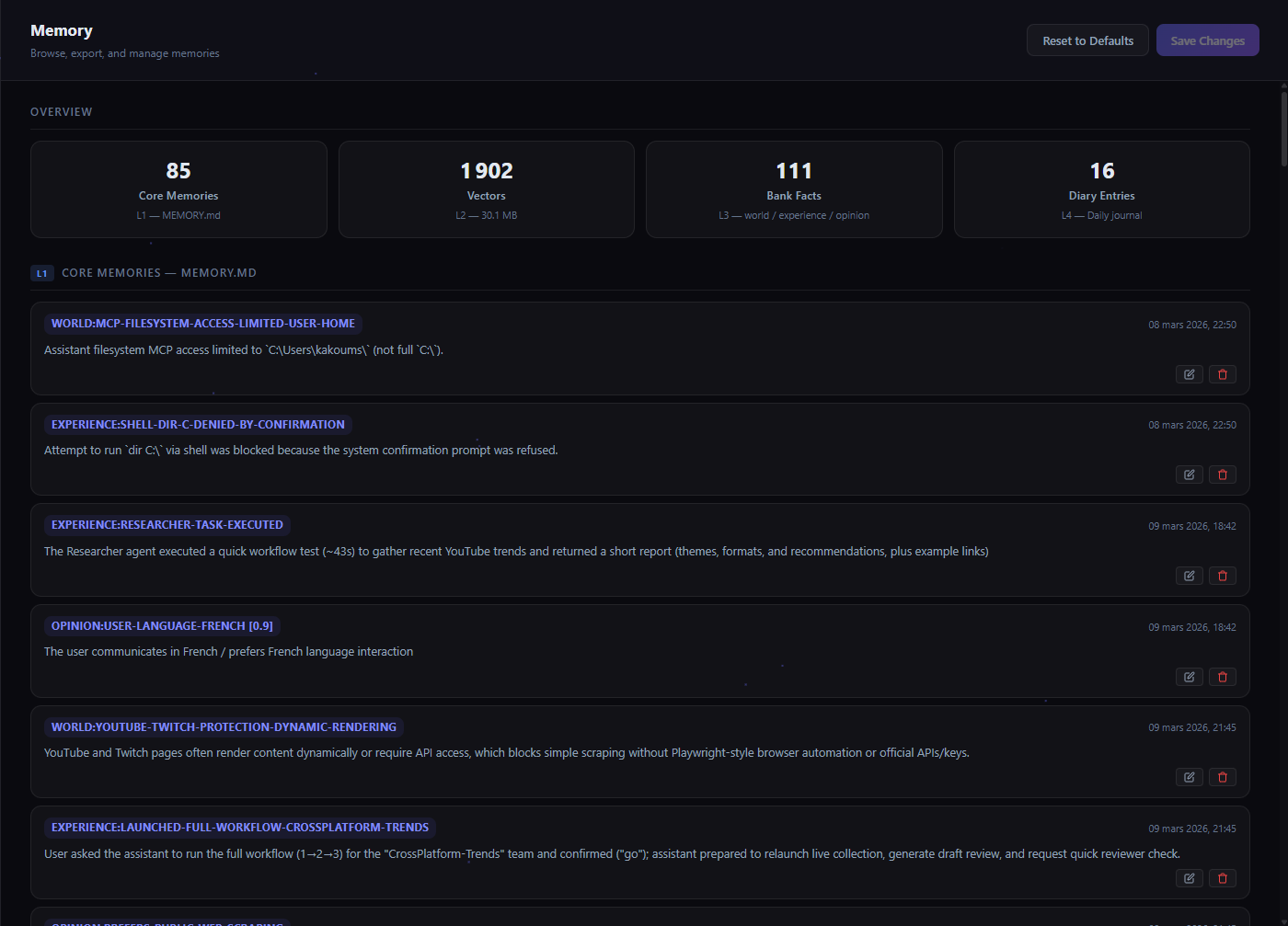
Memory Overview
See total memories, entries, words, and distinct topics stored. Monitor how your agent's knowledge grows.
Core Memories
Long-term memories stored in MEMORY.md. The agent automatically saves important context from conversations.
Vector Search
Semantic search across all memories using embeddings. The agent retrieves relevant memories when answering questions.
Daily Diary
Automatic daily diary entries in diary/YYYY-MM-DD.md. Review what your agent worked on each day.
Communications
Connect your agent to external messaging platforms. Control it from Discord, Telegram, or receive notifications anywhere.
!yolo/!safe/!status commands + button-based tool approval), Webhook (HTTP POST with custom headers), Telegram (Bot API), Slack (incoming webhooks), and Email. Notifications have priority levels (low, normal, high, urgent) with emoji mapping and source tracking (heartbeat, task, agent, cron, alert). History is persisted (200 entries) so nothing gets lost. Your agent works 24/7 — and you stay informed from anywhere.
Discord Bridge
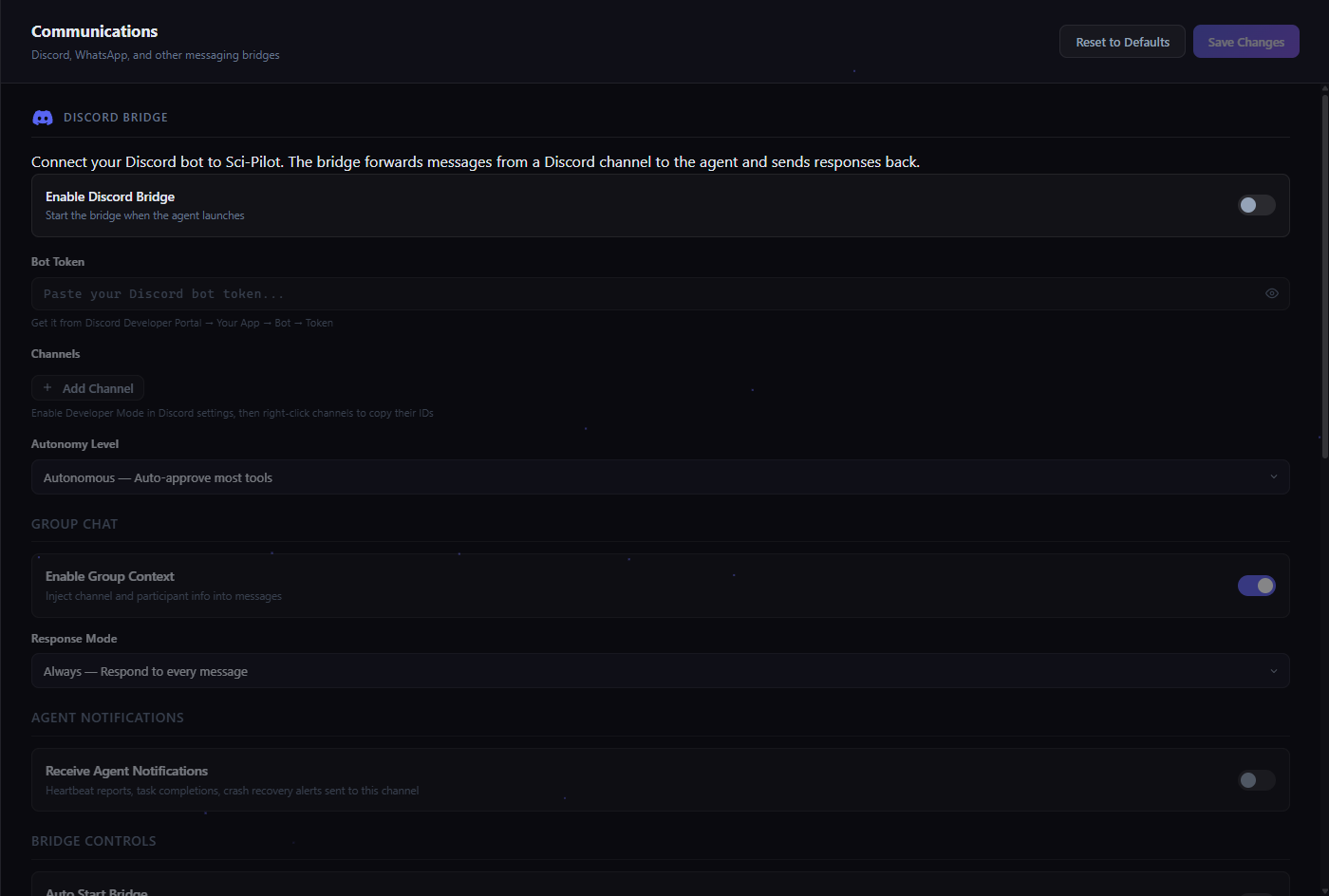
Discord Bot Integration
Connect a Discord bot to control Sci-pilot from any Discord channel. Send messages, approve tools, and monitor agents.
Group Context
Enable group mode so the agent can participate in multi-user Discord conversations with context awareness.
Telegram Bot
Telegram Bot
Connect via BotFather token. Send and receive messages, get agent notifications directly in Telegram.
Agent Notifications
Receive push notifications when tasks complete, errors occur, or the agent needs your attention.
Usage
Track your token consumption and estimated costs across all sessions and providers.
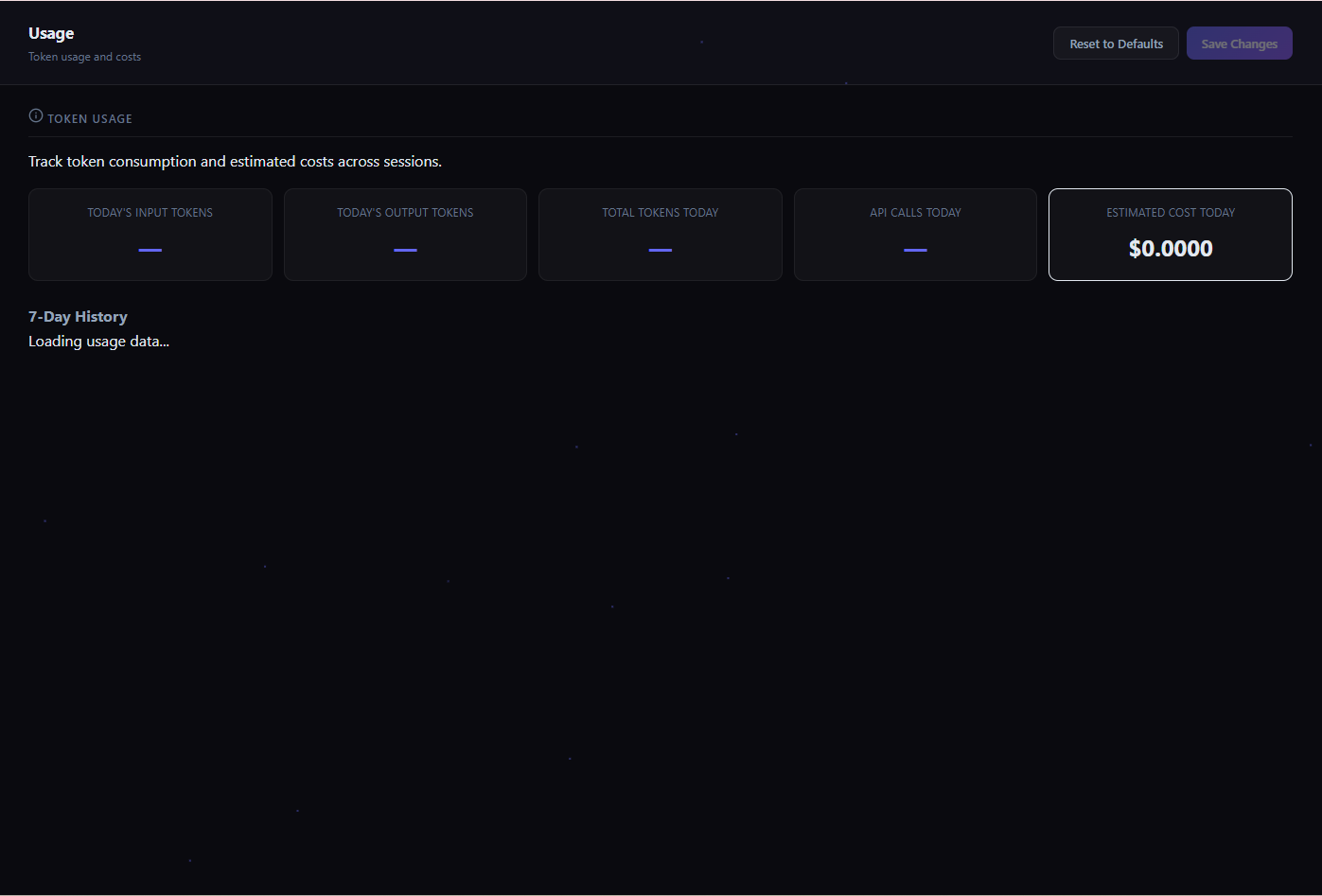
Daily Metrics
Track today's input tokens, output tokens, total tokens, API calls, and estimated cost at a glance.
7-Day History
View usage trends over the past week. Identify usage patterns and optimize your model selection.
Health
Run diagnostics, check system status, and manage backups. Auto-repair fixes common issues automatically.
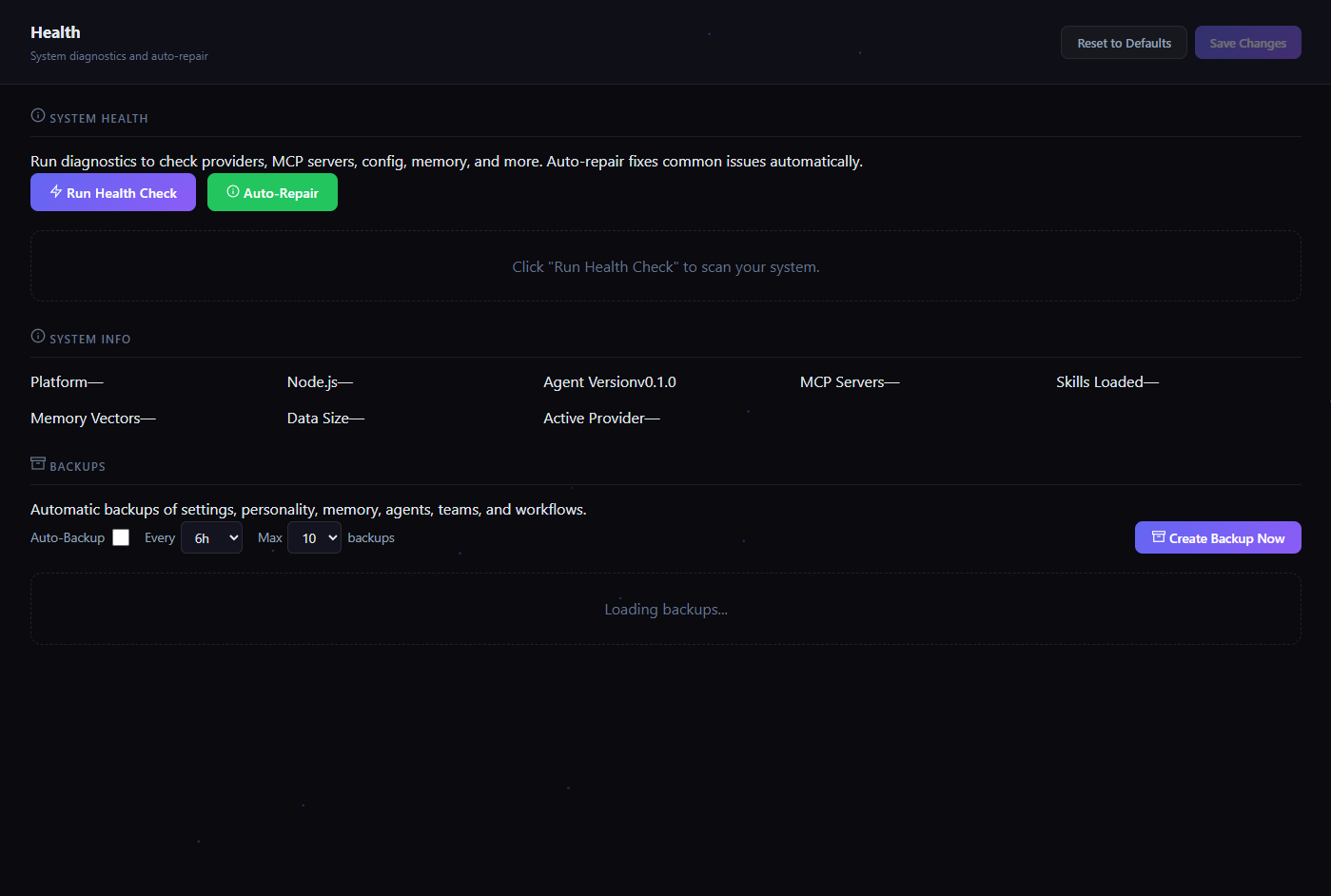
Health Check
One-click diagnostic scan. Checks providers, MCP servers, config files, memory, and skills for issues.
Auto Repair
Automatically fix common issues like corrupted config, missing directories, or stale sessions.
System Overview
Platform info, Node.js version, agent version, active MCP servers, and loaded skills count.
Backups
Create and restore backups of settings, personality files, memory, agents, teams, and workflows.
Logs
Real-time log viewer for debugging. Stream the agent engine's console output with level filtering and search.
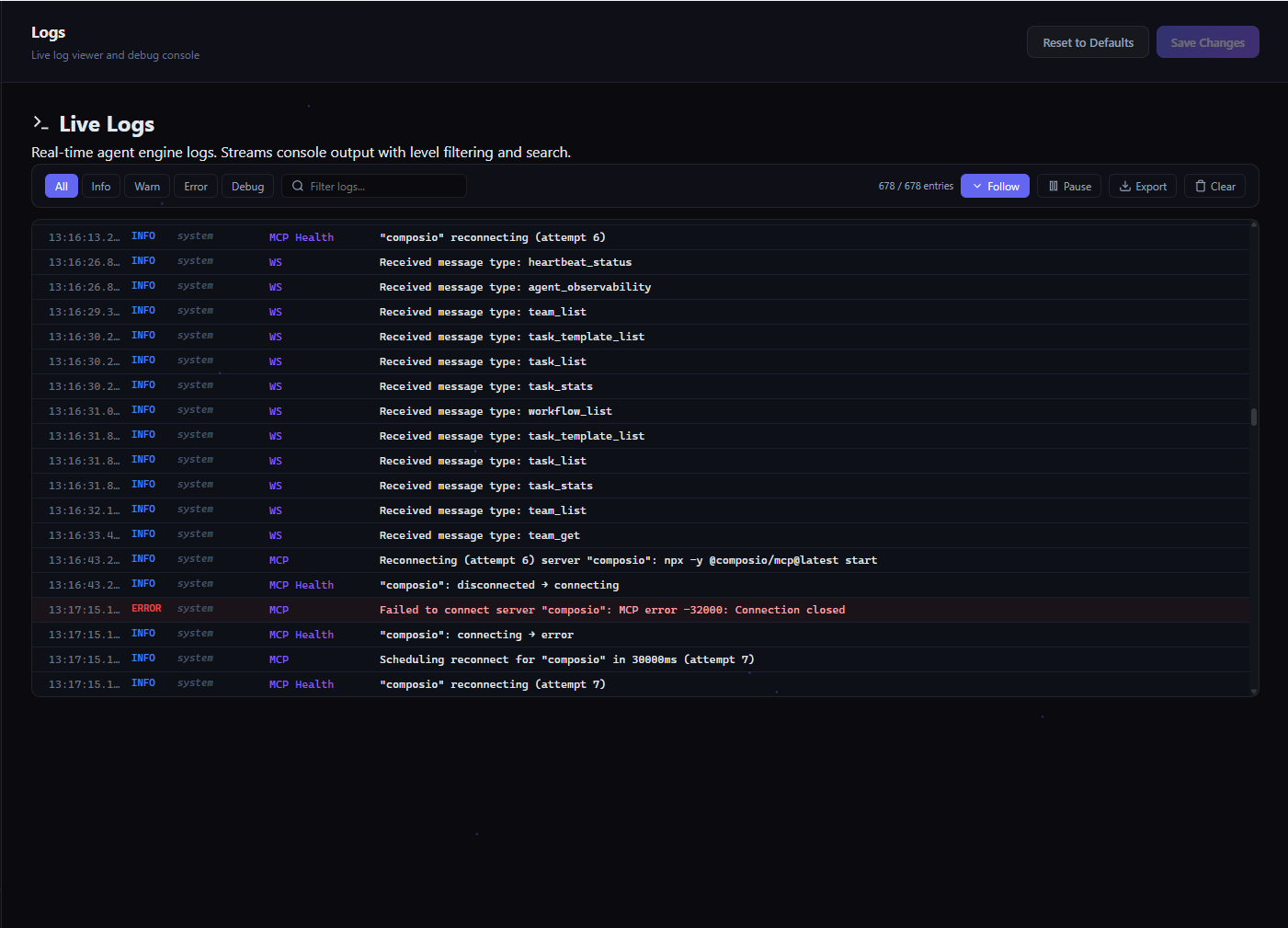
Level Filters
Filter by All, Info, Warn, Error, or Debug. Quickly find issues.
Search & Export
Full-text search across logs. Export logs for sharing or debugging. Pause/Follow live stream.
Advanced
Power-user features: autonomous heartbeat, webhooks, cron jobs, background daemon, and engine tuning.
Heartbeat (Autonomous Mode)
Enable Heartbeat
When enabled, the agent wakes up on a schedule and performs autonomous tasks — monitoring, reporting, maintenance.
Interval & Quiet Hours
Set how often the agent checks in (in minutes) and define quiet hours when it should stay silent.
Delivery Channels
Choose where heartbeat notifications go: Discord, Telegram, Webhook, Email, or Slack.
HEARTBEAT.md
Write custom instructions for what the agent should do during each heartbeat cycle.
Webhooks & External Triggers
HTTP Webhooks
Create webhook endpoints that trigger agent actions. Integrate with GitHub, CI/CD, monitoring tools, or any HTTP source.
Prompt Templates
Define what the agent should do when a webhook fires. Use {{body}} to inject the webhook payload.
Background Daemon
Run the agent as a background service with auto-restart and health monitoring. Survives system reboots.
Cron Jobs
Scheduled Tasks
Create jobs that run on a schedule using cron expressions, fixed intervals, or one-shot dates.
Task Prompts
Define what the agent should do at each scheduled time. Full natural language instructions.
Timezone Support
Cron jobs respect your timezone. Set the timezone per job or use the system default.
Per-Agent Autonomous Mode
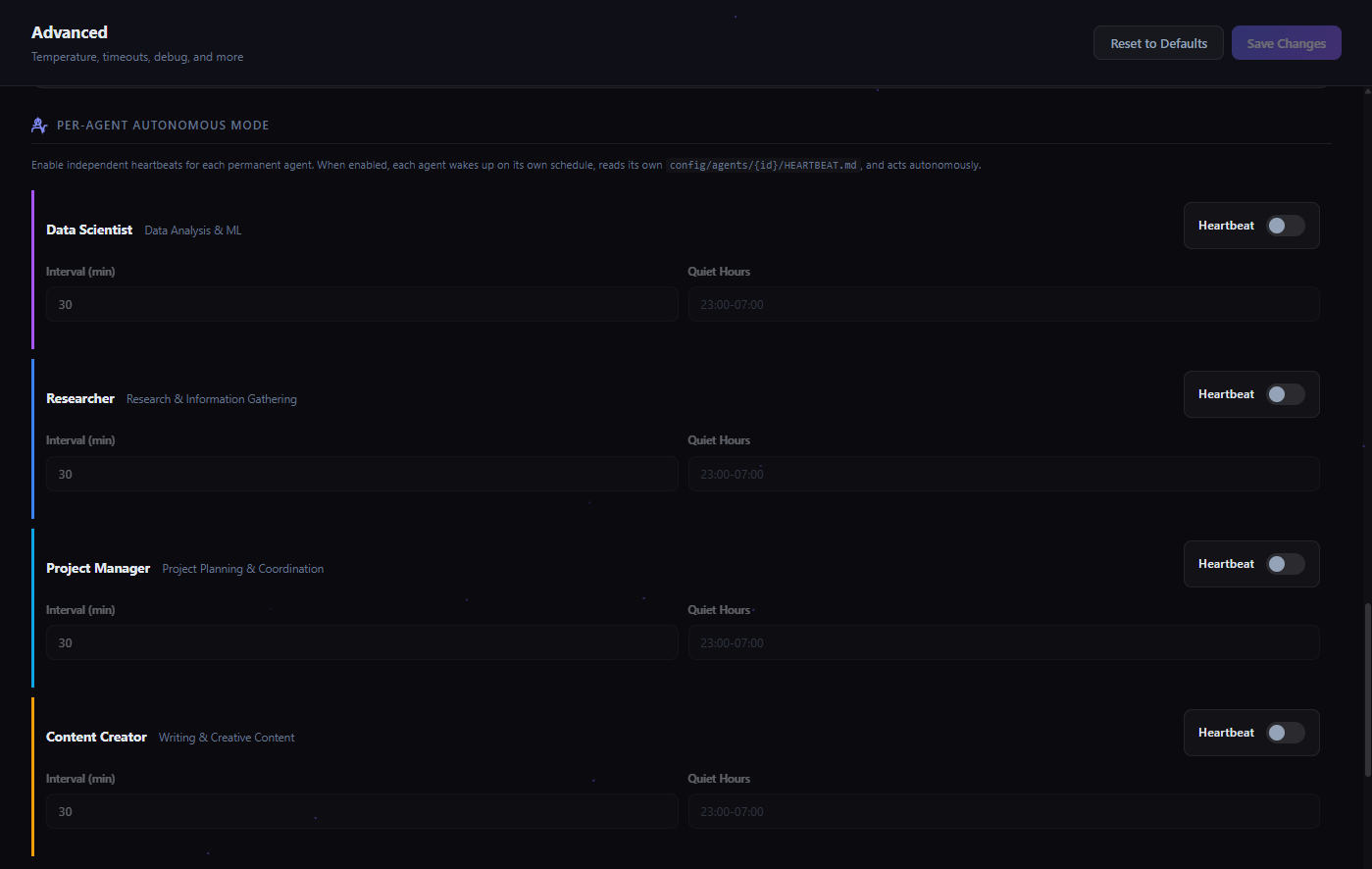
Independent Heartbeats
Each sub-agent can have its own heartbeat schedule. A Data Scientist agent can wake up daily to check for new data.
Per-Agent Schedule
Set interval and quiet hours independently for each agent. Staggered starts prevent resource contention.
Engine Configuration
Agent Engine
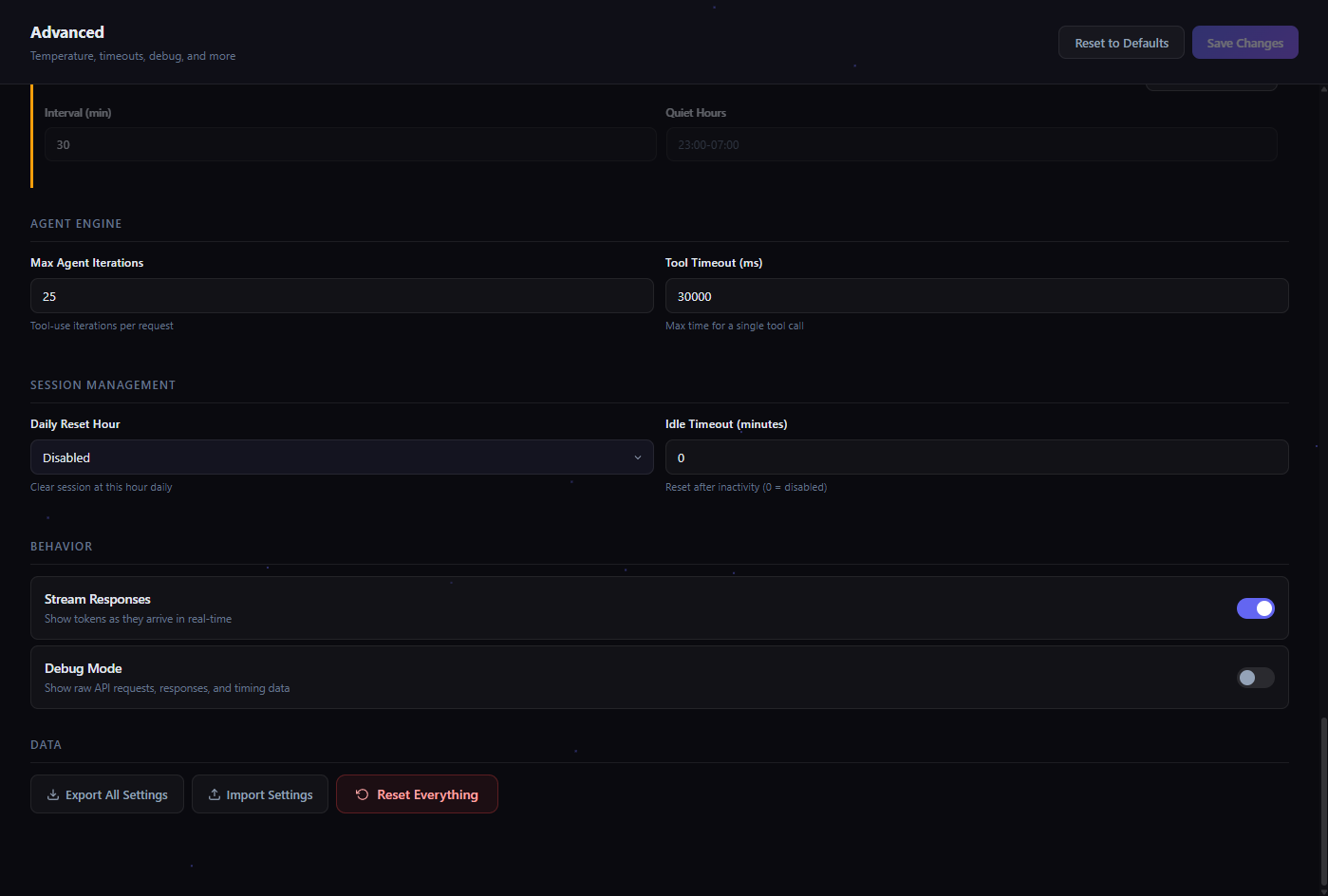
Max Iterations (tool-use loops per request) and Tool Timeout (max time for a single tool call).
Session Management
Configure daily session reset time and idle timeout. Keep conversations organized and resources clean.
Behavior Toggles
Stream Responses for real-time output. Debug Mode for raw API request/response inspection.
Data Management
Export all settings, Import from backup, or Reset Everything to factory defaults.